
Goal: Discovering and Learning & Visual Training
Activities: Visual Stimulation, cause & effect games, apps with large cells & contrasting colors.
This configuration seeks to limit the number of options the user must choose between, and avoid accidental clicks.
Recommended customization:
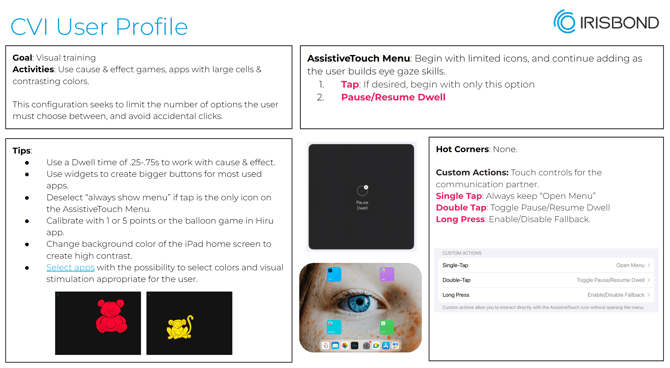
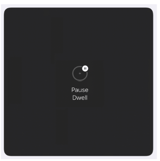
- Add only Pause/Resume Dwell action (for the caregiver and in case the user would like to start using the Assistive Touch menu is a good way how to skill building selecting an action)
Calibration: Calibrate with 1 or 5 points. Personalize the colors of the calibration in Hiru app to ensure contrasting colors and no distractions.
Hot corners: None
Auto Hide: OFF so the caregiver can see where the user is looking
Dwell Time: 0.50 s
Idle opacity: 15 % or Always show the menu: OFF for no distraction by the Assistive touch menu.
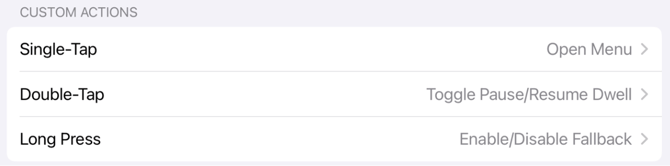
Custom actions: Activate these three to allow the caregiver easy access to Pause the eye gaze or lock in a specific action with fallback)
Widgets: Use widgets for easier click
Fallback action: For Beginner Users, it can be useful to set your Fallback Action to "Pause Dwell"
APPS: Check our recommended apps for CVI Early-stage users in our app guide!
- HelpKidzLearn Big Bang Pictures
- Onni & Ilona by Pintxo Creative
- Sensory Electra by Sensory Apps
- Keeble accessible keyboard by AssistiveWare
- ilovefireworks by Fireworks Games