---
title: "Systray: update Hiru in Windows"
description: What is Systray? How you can update your Hiru Firmware on a Windows device? Read more:
---
[Skip to content](https://knowledge.irisbond.com/en/windows/systray/how-to-update#main-content)
English
Show submenu for translations

Open main navigation
Close main navigation
- English
Show submenu for translations
- Ir a irisbond.com
Ir a irisbond.com
Hi, how can we help you?
- There are no suggestions because the search field is empty.
1. [Knowledge base](https://knowledge.irisbond.com/en?hsLang=en)
2. [Hiru & Windows](https://knowledge.irisbond.com/en/hiru-windows?hsLang=en)
3. [Systray](https://knowledge.irisbond.com/en/hiru-windows?hsLang=en#systray)
# Systray: update Hiru in Windows
## What is Systray? How you can update your Hiru Firmware on a Windows device? Read more:
When you purchase a Hiru device,you have **access to all Hiru Firmware updates** every time a new update is available via our remote update system, Systray.
### Systray
Systray is our updating software for Windows devices. You will need Systray to be able to correctly work with Hiru, so even if there is no update available now, download Systray for the proper functionality of the eye tracker.
The primary purpose of Systray is to update the firmware and keep track of the versions of the Hiru Firmware.
Download Systray **[here](https://downloads.irisbond.com/systray)** and follow the steps on the video:
When downloaded, the Systray blue icon appears automatically under the **arrow** 🔼 located on the right side of the desktopp bar.
### How to update?.gif?width=300&height=188&name=Systray%20update%20(1).gif)
After downloading Systray, simply click on the **arrow** located in the right corner of your desktop bar. Then select the blue Systray icon and choose **"Check for update."** You will receive a notification informing you that a new update is available. Click on the notification and patiently wait for the update to complete.
**During the update process, ensure that your Hiru device remains connected.** You will receive a notification that the Hiru will restart; allow this process to happen and keep Hiru connected throughout. Once you see the infrared lights turn back on, you can check for updates again. If you receive a notification stating **"You already have the latest Hiru update,"** it means that the update was successful. 🎉
You can watch a detailed walkthrough of the update process in the video provided above.
**NOTE:** Once you update your Hiru firmware, **it gets saved inside of the Hiru** so you **can use it on both Windows** or **iPad** devices and the firmware remains up to date at all times.
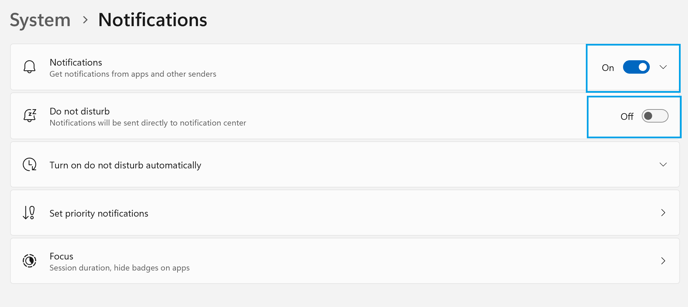
**Do not forget additional steps: **
- Focus assistant: Make sure your focus assistant is OFF
- Notifications: Check if notifications for Hiru Systray are ON
- [Frequently Asked Questions](https://knowledge.irisbond.com/en/frequently-asked-questions?hsLang=en#main-content)
- [iPad](https://knowledge.irisbond.com/en/frequently-asked-questions?hsLang=en#ipad)
- [Hiru](https://knowledge.irisbond.com/en/hiru?hsLang=en#main-content)
- [Release notes](https://knowledge.irisbond.com/en/hiru?hsLang=en#release-notes)
- [Eye tracking basics](https://knowledge.irisbond.com/en/hiru?hsLang=en#eye-tracking-basics)
- [Hiru & Windows](https://knowledge.irisbond.com/en/hiru-windows?hsLang=en#main-content)
- [Easy Click](https://knowledge.irisbond.com/en/hiru-windows?hsLang=en#easy-click)
- [Systray](https://knowledge.irisbond.com/en/hiru-windows?hsLang=en#systray)
- [Settings](https://knowledge.irisbond.com/en/hiru-windows?hsLang=en#settings)
- [Hiru & iPad](https://knowledge.irisbond.com/en/hiru-ipad?hsLang=en#main-content)
- [Set-up](https://knowledge.irisbond.com/en/hiru-ipad?hsLang=en#set-up)
- [Hiru App](https://knowledge.irisbond.com/en/hiru-ipad?hsLang=en#hiru-app)
- [Settings](https://knowledge.irisbond.com/en/hiru-ipad?hsLang=en#settings)
- [iPadOS](https://knowledge.irisbond.com/en/hiru-ipad?hsLang=en#ipados)
- [Applications](https://knowledge.irisbond.com/en/hiru-ipad?hsLang=en#applications)
- [Usage](https://knowledge.irisbond.com/en/hiru-ipad?hsLang=en#usage)
- [Oskol iOS](https://knowledge.irisbond.com/en/hiru-ipad?hsLang=en#oskol-ios)
- [Oskol 2](https://knowledge.irisbond.com/en/hiru-ipad?hsLang=en#oskol-2)
- [Versa Eye](https://knowledge.irisbond.com/en/hiru-ipad?hsLang=en#versa-eye)
[](http://irisbond.com)
Centro de ayuda irisbond.com
[mailto:email@email.com](mailto:email@email.com)
Copyright © 2026, IRISBOND