
Irisbond ensures the perfect compatibility of Hiru with those devices:
- Microsoft Surface Pro 7+
- Microsoft Surface Pro 10
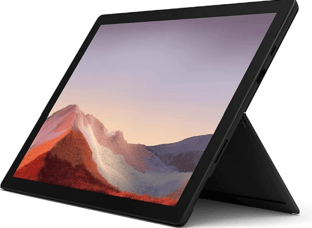
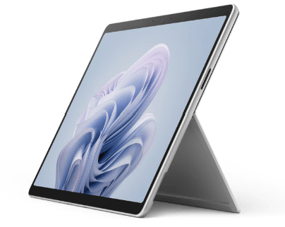
Hiru is not yet compatible with devices based on ARM processors.
- Minimum requirements:
- CPU 1.33GHz
- RAM 8GB
- Hard Disk 3GB + HDD
- USB 3.0
- Storage 128GB
Operating system:
Hiru is compatible with these Windows operating systems
- Windows 11 Pro
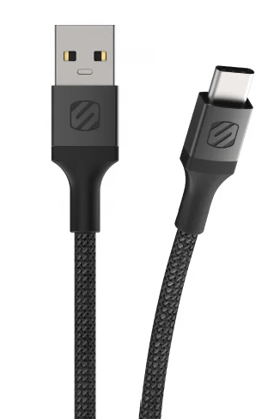
Cables: Always use Irisbond's recommended cables & adapters
Ensure that you connect the Hiru to the device using the appropriate Scosche StrikeLine cable. This MFi-certified cable guarantees optimal connectivity and performance with the Hiru.
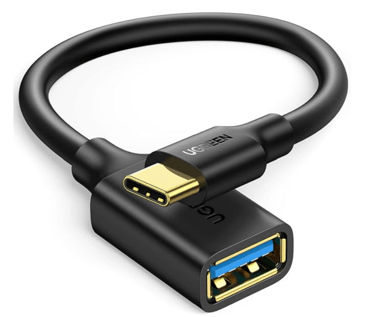
This adapter is the one that should be used with Hiru: Ugreen USB A-C.
Current Software versions:
- EasyClick: 23.203.2.94
- Systray: 24.202.1.0
- Hiru Firmware: 4.0.4
How to determine Make and Model of your Windows Device
- Using the System Information Tool (Easiest & Most Detailed)
This is the most comprehensive tool for viewing hardware details.
Press the Windows key + R to open the Run dialog box.
Type msinfo32 and press Enter.
The System Information window will open. Look under the System Summary
section for the following two entries:
System Manufacturer: This is the Make (e.g., Dell, HP, Lenovo).
System Model: This is the specific Model (e.g., XPS 13 9310, Spectre x360).
OR - Using the Command Prompt (Quickest)
This method lets you pull the specific details directly without navigating a graphical interface.
Search for Command Prompt.
Open the Command Prompt application.
Type the following command and press Enter:
wmic csproduct get name, vendor
The output will show the Vendor (Make) and the Name (Model).